Using QGIS on the SMCE
QGIS is available on the SMCE through a virtual desktop environment. This allows you to use QGIS with full access to your JupyterHub files and the shared storage system.
Best for: Visualization, map creation, and interactive exploration of geospatial data. For heavy geoprocessing or analysis, consider using Python-based tools in JupyterLab instead.
Starting the QGIS Environment
Step 1: Launch the QGIS Image
When selecting a server, choose the JupyterLab-QGIS image
Select your desired instance type (see Compute Resources for guidance)
Start the server
Step 2: Open the Virtual Desktop
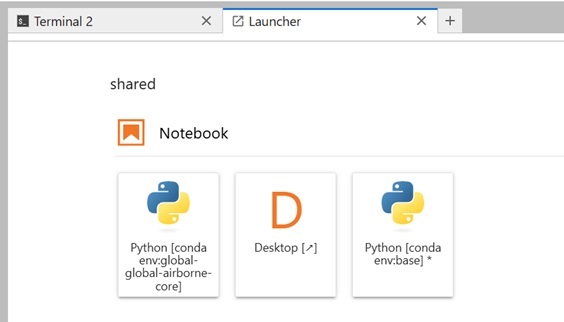
Once your server starts, you’ll see the JupyterLab interface with a launcher.
In the launcher, click the Desktop icon to open the virtual desktop in a new tab
A new browser tab will open with a Linux desktop environment
Step 3: Launch QGIS
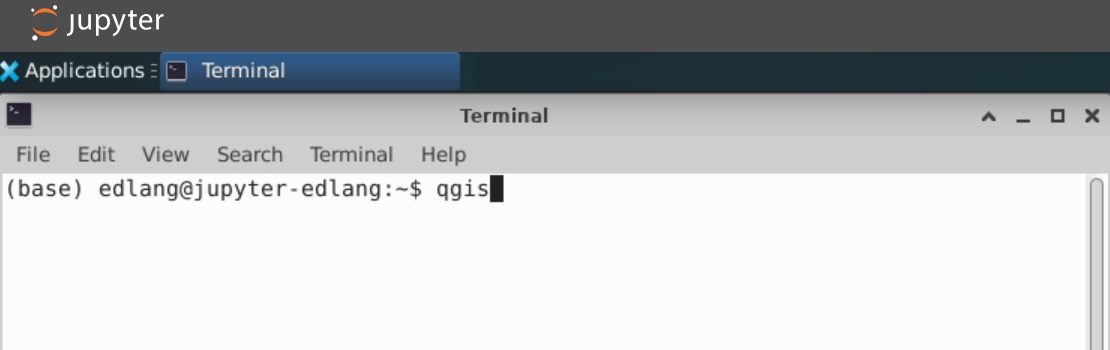
In the virtual desktop, open a terminal (usually available in the taskbar or applications menu)
Type
qgisand press Enter
QGIS will open and is ready to use
Working with Data in QGIS
File Access
QGIS has access to all the same files as your JupyterHub environment:
Home directory:
/home/jovyanShared local storage:
/shared/users-local/<username>S3-backed storage:
/shared/users-bucket/<username>
You can open and save files directly to these locations just like you would in JupyterLab.
Loading Data from S3
The SMCE’s FSx for Lustre filesystem allows you to access S3 data directly in QGIS without downloading files first.
To use S3-backed data:
Navigate to
/shared/users-bucket/<username>or project-specific bucket mountsLoad raster or vector data as you normally would in QGIS
Data is automatically cached for fast access (see Storage Overview for more details)
This is particularly useful for large geospatial datasets like satellite imagery or LiDAR data.
Saving Your Work
Save project files and outputs to appropriate storage:
QGIS project files (.qgz): Save to your home directory or
/shared/users-localfor quick accessLarge outputs (rasters, processed data): Save to
/shared/users-bucketfor unlimited storageTemporary files: Can go in home directory but clean up when done (only 30GB available)
See Storage Overview for best practices on where to store different types of files.
Troubleshooting
Virtual Desktop Goes to Sleep
The virtual desktop may go to sleep after a period of inactivity.
To resume:
Return to your JupyterLab tab
Click the Desktop icon in the launcher again
The desktop should resume where you left off
If QGIS was open, it should still be running